Table of Contents
An Odoo upgrade can look straightforward until a custom sales workflow stops working, an inventory report shows unexpected figures, or an accounting integration fails after migration. These problems often have little to do with moving the database itself. They usually appear when custom modules, frontend components, and business data are not properly prepared for the new version.
An Odoo 20 upgrade checklist helps businesses identify these risks before switching their live ERP system. The main priorities are reviewing custom modules, checking Owl frontend compatibility, cleaning business data, and testing the upgraded environment against everyday operations.
Whether your company uses Odoo for accounting, sales, inventory, manufacturing, or CRM, the goal is the same: move to the new version without losing important functionality or confidence in your data. This guide explains what technical teams and business owners should review before upgrading to Odoo 20, including the checks that matter most before production.
What Should You Check Before Upgrading to Odoo 20?
Before starting an Odoo 20 migration, review the current ERP environment and identify everything the business depends on. A standard Odoo database may be relatively straightforward to upgrade. A heavily customized system needs more attention because its modules, integrations, reports, and automated processes may behave differently in the target version.
Start with these areas:
| Upgrade Area | What to Review | Main Risk |
| Custom modules | Python code, XML views, dependencies | Broken functionality |
| Third-party apps | Vendor support and version compatibility | Unsupported modules |
| Owl frontend | Custom components, widgets, templates | Interface errors |
| Business data | Customers, products, accounting, inventory | Incorrect records |
| Integrations | APIs, payment systems, external platforms | Interrupted data exchange |
| Security | Access rights, record rules, user groups | Incorrect permissions |
| Testing | Business workflows and UAT | Production failures |
| Recovery | Backups and restoration procedures | Extended downtime |
Businesses should also confirm the upgrade path supported by their Odoo edition and hosting environment. The official Odoo upgrade documentation provides the general upgrade process and testing requirements. Version-specific guidance should be reviewed when Odoo 20 documentation is available.
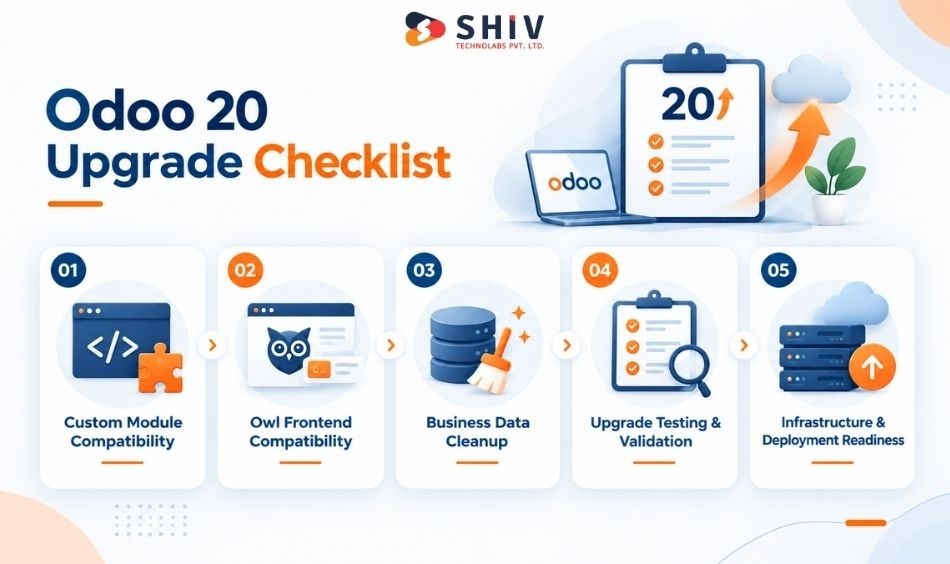
Checklist 1: How Do You Prepare Custom Modules for Odoo 20?
Custom modules often carry the business rules that make an ERP system useful. They may control pricing approvals, manufacturing workflows, inventory transfers, reporting, or integrations with external applications. An upgrade can affect these modules even when the standard Odoo features continue working.
Audit Custom and Third-Party Modules
Start by creating a complete inventory of installed modules. Separate standard Odoo apps, custom-developed modules, and third-party applications. For each custom module, record its purpose, dependencies, technical owner, and business importance.
Pay particular attention to modules that extend accounting, inventory, sales, purchasing, or manufacturing because errors in these areas can affect daily operations. For third-party apps, confirm whether the developer provides a compatible release for the target Odoo version. Do not assume that a module working in Odoo 18 or 19 will run unchanged in Odoo 20.
Review Python Models, ORM Changes, and XML Views
Custom Python code may depend on ORM methods, model fields, or framework behavior that changes between Odoo versions. Review model inheritance, computed fields, constraints, scheduled methods, and overridden business logic.
XML views also need attention. A field removed or renamed in the target version can break a form, list, or search view. Changes to view inheritance may also prevent a customized screen from loading. Compare custom implementations with the target version’s supported models and view architecture rather than making changes based only on error messages.
Validate Security Rules and Automated Actions
Security problems can be difficult to identify because they may affect only certain users. Review access control lists, record rules, user groups, and company-specific permissions. Then test automated actions, server actions, scheduled jobs, and approval workflows. A successful module installation does not prove that these processes still work.
Run Code Compatibility Checks
Use available static analysis tools, migration utilities, and automated tests to identify compatibility problems. Review deprecated methods, unsupported imports, dependency versions, and references to removed fields.
Some issues can be corrected mechanically, while others require developers to revise the underlying logic. Teams managing heavily customized environments may benefit from Odoo development services when assessing these changes.
Test Modules on a Clean Odoo 20 Database
Testing against an upgraded production copy is essential, but a clean target-version database can also help isolate module installation problems. Install the custom modules with their required dependencies and review installation logs.
Then test their primary functions using representative data. If a module installs successfully but fails during actual use, the upgrade work is not complete.


Checklist 2: What Owl 3 Changes Matter During an Odoo 20 Upgrade?
Odoo uses the Owl framework for interactive frontend components. Custom dashboards, widgets, and interface extensions may depend on Owl APIs, component behavior, and templates. If the target Odoo release introduces Owl 3 compatibility requirements, frontend customizations should be reviewed carefully.
Important: The precise Owl version bundled with Odoo 20, its breaking changes, and any officially supported rewrite scripts must be confirmed against the released Odoo 20 source and migration documentation. They should not be assumed from the version name alone.
Identify Custom Owl Components and Widgets
Begin by listing every custom frontend component. This may include dashboard widgets, field components, dialog boxes, navigation elements, and custom screens.
Review where each component is registered and which Odoo services it uses. Components that depend on internal framework behavior deserve additional attention.
Review Reactivity and Lifecycle Changes
Frontend code may rely on reactive state, lifecycle hooks, and component initialization behavior. Compare these implementations against the framework version used by the target Odoo release.
Look for changes affecting component mounting, updates, cleanup, and asynchronous operations. A component that renders correctly may still fail when users edit records, switch screens, or trigger background requests.
Check Template Directives and Component Properties
Review XML templates, component properties, event handlers, and template inheritance. Pay attention to custom directives and patterns that may no longer be supported.
Small template differences can affect user interactions even when the backend continues working.
Run Available Rewrite Scripts and Fix Remaining Issues
If Odoo provides official codemods or rewrite utilities for the relevant frontend changes, run them in a controlled development environment. Review every automated change before accepting it.
Rewrite tools can reduce repetitive work, but they cannot reliably correct every business-specific component. Any remaining compatibility problems should be addressed manually.
Test Custom Screens and Frontend Interactions
Test the screens employees use most frequently. Open records, edit fields, apply filters, switch tabs, and trigger custom buttons.
Also test error messages, loading states, permissions, and mobile or smaller-screen layouts where relevant.
| Frontend Component | Recommended Test |
| Custom dashboard | Data loading, filtering, refresh |
| Field widget | Display, editing, validation |
| Dialog component | Open, submit, cancel, close |
| Custom list view | Sorting, pagination, actions |
| Navigation component | Routes and menu permissions |
| Interactive form | State changes and saved values |
The official Owl documentation is a useful technical reference, but compatibility must be checked against the Owl version actually integrated into Odoo.
Checklist 3: What Data Should Be Cleaned Before an Odoo 20 Upgrade?
An upgrade transfers existing business data into a newer application structure. It does not automatically correct duplicate contacts, inconsistent product records, or outdated business information. Data cleanup before migration can reduce errors and make post-upgrade validation easier.
Review Duplicate Customer and Vendor Records
Check for duplicate contacts, inconsistent names, outdated addresses, and incomplete tax information. Review relationships between companies and contacts before merging records.
Duplicate records may affect invoices, sales reports, payment reconciliation, and customer history. Use controlled deduplication rules to avoid merging different businesses with similar names.
Validate Product and Inventory Master Data
Review product codes, units of measure, product categories, tracking settings, and warehouse configurations.
Pay attention to discontinued products and inactive records that remain linked to open transactions. Check whether inventory quantities and valuation methods are consistent with current operations.
Check Accounting Records and Financial Balances
Accounting data needs particular care. Review open invoices, unpaid bills, journal entries, taxes, reconciliation status, and opening balances.
Record baseline totals before migration so they can be compared with the upgraded system. Do not delete or rewrite historical accounting records merely to simplify an upgrade. Any corrections should follow the company’s accounting policies and applicable requirements.
Review Custom Fields and Data Relationships
Custom modules often introduce additional fields and relationships. Some fields may no longer be needed, while others may require transformation because their structure changes.
Document which fields must be retained, renamed, mapped, or archived. Check relationships between customers, sales orders, invoices, stock moves, and custom records.
Use Upgrade Scripts for Structural Data Changes
When a module’s data structure changes, migration scripts may be needed to preserve existing information. These scripts can help rename fields, transform values, update relationships, or move data between models.
Run them against a test database and validate the results before production. For businesses managing connected ERP and CRM records, ERP and CRM development services may support the broader data and workflow requirements.
Checklist 4: How Should You Test the Odoo 20 Upgrade Before Production?
A successful database upgrade is only the beginning of testing. The real question is whether employees can complete their daily work accurately in the upgraded environment.
Request and Configure an Upgraded Test Database
Use Odoo’s supported upgrade service or deployment-specific procedure to create an upgraded test environment. Keep production operations separate from testing. Protect sensitive information and prevent test systems from sending real customer emails, processing live payments, or triggering unintended external actions.
Install the Updated Custom Modules
Install or update the compatible custom modules in the test environment. Review logs for dependency problems, missing fields, invalid views, and failed migration scripts. Resolve installation errors before beginning full workflow testing.
Test Critical Business Workflows
Create realistic scenarios that reflect how employees use the ERP.
Examples include:
- Creating a quotation and converting it into a sales order
- Confirming a purchase order and receiving goods
- Processing stock transfers and delivery orders
- Generating and posting customer invoices
- Completing payment reconciliation
- Running manufacturing orders and related reports
Testing should cover normal operations as well as exceptions, cancellations, and corrections.
Compare Financial and Inventory Data
Compare key totals from the original and upgraded databases. Use the same reporting dates, company filters, and accounting settings wherever possible.
| Data Area | Validation Example |
| Customers | Record counts and important relationships |
| Sales | Open orders and order values |
| Purchasing | Outstanding purchase orders |
| Inventory | On-hand quantities and valuation |
| Accounting | Trial balance and outstanding balances |
| Manufacturing | Open orders and component requirements |
| Custom data | Important field values and relationships |
Differences should be investigated rather than automatically accepted as expected upgrade behavior.
Validate Integrations and User Permissions
Test integrations with payment providers, shipping systems, ecommerce platforms, reporting tools, and external applications. Confirm authentication, API compatibility, field mappings, and scheduled synchronization. Then test the system using actual business roles. A manager, accountant, warehouse operator, and sales representative may each encounter different permission issues.
Complete User Acceptance Testing
Invite representatives from each department to use the upgraded system. Give them realistic tasks and record the results. A technical team may confirm that an invoice form loads, but an accountant may identify a missing field needed for daily reconciliation. User acceptance testing helps identify these operational gaps before the production switch.
Checklist 5: What Infrastructure and Deployment Checks Matter Before an Odoo 20 Upgrade?
An Odoo upgrade depends on more than application code and business data. The hosting environment, database configuration, external services, and deployment process must also support the target version.
Confirm Hosting and Software Compatibility
Review the target Odoo version’s supported Python, PostgreSQL, operating system, and system package requirements. Check whether the existing hosting environment can run the new version without additional infrastructure changes.
Businesses using Odoo Online, Odoo.sh, or self-hosted deployments should follow the upgrade procedures supported by their hosting model.
Review Database Size and Server Resources
Large databases can require additional storage, memory, and processing capacity during migration.
Review database size, attachment storage, available disk space, and current resource usage. Use the test upgrade to estimate migration duration and identify resource constraints.
Validate External APIs and Authentication
Odoo integrations may depend on API endpoints, authentication methods, webhooks, and scheduled synchronization.
Review these dependencies before upgrading, especially where external systems rely on custom models or fields. Test representative API requests and confirm that data continues moving correctly between connected applications.
Prepare a Production Cutover Plan
Define the maintenance window, responsible team members, final backup procedure, and deployment sequence.
Plan how users will be informed about temporary system unavailability. Identify any external integrations or scheduled processes that must be paused during migration. The cutover plan should also include the criteria for approving the upgraded system for business use.
Document Recovery and Post-Upgrade Monitoring
Prepare a recovery procedure before making production changes. Define how the previous environment could be restored, what happens to transactions created after the upgrade, and who has authority to approve recovery.
After deployment, monitor application logs, integrations, scheduled jobs, performance, and critical business transactions. Keep technical support available during the initial stabilization period.
What Is the Step-by-Step Process for Upgrading to Odoo 20?
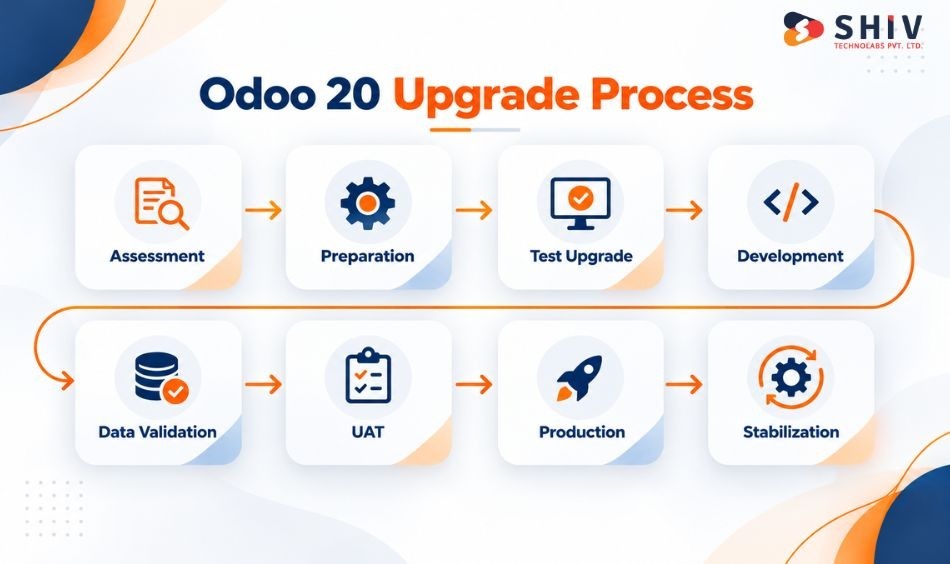
A structured Odoo 20 upgrade process helps teams reduce migration risks, track dependencies, and validate critical business workflows before production deployment.
1. Assessment: Review Modules, Integrations, and Data
Start by documenting installed Odoo modules, custom applications, third-party integrations, scheduled jobs, and important business data. Identify deprecated features, custom dependencies, and workflows that may require changes before moving to Odoo 20.
2. Preparation: Freeze Changes and Create Backups
Agree on a temporary development freeze for modules and integrations included in the upgrade. Create verified backups of the database, attachments, configuration, and relevant application files. Document the current Odoo version and migration responsibilities before testing begins.
3. Test Upgrade: Create a Non-Production Odoo 20 Environment
Run the supported upgrade process against a copy of the production database. The upgraded test environment helps teams identify migration errors, unsupported configurations, broken views, and other compatibility issues without affecting live operations.
4. Development: Update Custom Modules and Owl Components
Adapt custom Python code, XML views, security rules, APIs, and frontend components for Odoo 20. Review Owl components and JavaScript changes carefully, then update custom modules using supported APIs and migration methods where appropriate.
5. Data Validation: Reconcile Business Records
After structural migration, compare important records with the original environment. Review customers, products, inventory, invoices, accounting balances, orders, taxes, and other business-critical data for missing, duplicated, or incorrect values.
6. UAT: Test Complete Business Workflows
Business users should test real processes rather than checking individual screens alone. Cover sales, purchasing, inventory, accounting, CRM, approvals, reporting, and connected systems. Record defects, correct critical issues, and repeat affected tests before approval.
7. Production: Complete the Live Upgrade
Schedule the production upgrade during an agreed maintenance window. Take a final backup, apply the approved migration process, update custom modules, and complete post-upgrade checks before reopening the system to users.
8. Stabilization: Monitor the Upgraded Environment
Continue monitoring Odoo after production release for errors, integration failures, slow processes, incorrect scheduled jobs, and unexpected user issues. Compare important reports and transactions with expected results, then resolve migration-related problems based on business priority.
What Must Be Ready Before the Production Upgrade?
Before approving the production switch, confirm that the upgrade has passed both technical and business checks.
| Readiness Check | Required Status |
| Database and file backups | Completed and restoration-tested |
| Custom modules | Compatible and tested |
| Frontend components | Validated in the target environment |
| Critical workflows | Passed regression testing |
| Accounting data | Reconciled |
| Inventory data | Reconciled |
| External integrations | Tested |
| User permissions | Validated |
| User acceptance testing | Approved |
| Downtime window | Agreed |
| Recovery procedure | Documented and tested where feasible |
| Support ownership | Assigned |
The upgrade should not proceed simply because the planned deployment date has arrived. Critical issues involving accounting accuracy, stock records, permissions, or essential integrations should be resolved before production.
How Shiv Technolabs Helps With Odoo 20 Upgrades
Odoo upgrades become more demanding when a business depends on custom modules, connected systems, and department-specific workflows. Shiv Technolabs supports businesses with Odoo development, customization, integration, and migration-related requirements.
Our team can assist with:
- Reviewing custom and third-party module compatibility
- Updating Python models, XML views, and frontend components
- Preparing migration scripts for custom data structures
- Testing ERP workflows and external integrations
- Validating accounting, inventory, and operational data
- Supporting production deployment and post-upgrade fixes
For companies planning a major version change, an early technical assessment can identify the work required before the production migration.
Planning an Odoo 20 upgrade? Contact Shiv Technolabs to discuss your current Odoo version, custom modules, integrations, and migration requirements.
Final Verdict: An Odoo 20 Upgrade Needs More Than a Database Migration
An Odoo 20 upgrade should be treated as a business system change, not only a technical version update. Custom modules must remain compatible, frontend interactions need testing, and important business records must be validated.
The strongest upgrade plans begin with a module audit and data review, followed by a test migration, workflow validation, and user acceptance testing. Before moving to production, confirm that essential integrations, accounting balances, inventory records, and user permissions work as expected.
A carefully tested upgrade gives teams a clearer picture of the risks and a more reliable path to the new version.
Frequently Asked Questions
Do Custom Modules Migrate Automatically When Upgrading to Odoo 20?
Not necessarily. Standard database migration does not guarantee that custom modules will remain compatible. Python code, XML views, dependencies, security rules, and frontend components may require changes.
What Owl 3 Changes Can Affect Custom Odoo Modules?
Potential compatibility areas include component lifecycle behavior, reactivity, templates, properties, and service integration. The exact changes depend on the Owl version bundled with the target Odoo release.
What Data Should Businesses Clean Before an Odoo 20 Upgrade?
Review duplicate contacts, product records, inventory data, accounting balances, custom fields, and outdated relationships. Keep historical financial records intact unless corrections are properly authorized.
How Can Developers Test Custom Modules Before Production?
Use a compatible test database, install updated modules, run automated checks, and test actual business workflows. Include role-based permissions, integrations, and user acceptance testing.
Can Businesses Upgrade Directly From Odoo 17 or 18 to Odoo 20?
The supported upgrade path depends on Odoo’s official upgrade service, edition, hosting model, and target-version availability. Confirm direct upgrade eligibility before planning the migration.
Can an Odoo 20 Upgrade Be Rolled Back?
Rollback depends on the hosting environment and available recovery procedures. A pre-upgrade backup may support restoration, but data created after the upgrade may require separate handling.





![Top 15 Best Business Process Automation Tools for Businesses[2025].](https://shivlab.com/wp-content/uploads/2025/06/Top-15-Best-Business-Process-Automation-Tools-for-Businesses2025.webp)