Table of Contents
Many businesses running Odoo find themselves at a point where daily operations begin to show cracks. Reports take longer to load. Error messages appear mid-process. Newer tools stop working with older versions. What once ran without problems now creates friction at every step.
Odoo migration is the process of moving your existing Odoo ERP system to a newer, more capable version. It involves transferring all your data, updating or rebuilding custom modules, and shifting the entire platform to a modern release. Done correctly, it keeps your business data intact while giving your team a faster, safer, and better-equipped system.
This guide covers what Odoo migration is, when your business actually needs it, what the odoo migration process looks like step by step, what it costs, and what to check before you start.
Quick Overview
Odoo migration is the process of upgrading your ERP from one Odoo version to a newer one. It involves moving all your business data, updating custom modules, and shifting to the latest platform. Businesses migrate to get better performance, stronger security, and access to features that older versions do not support. Most migrations follow a structured process: audit, backup, staging setup, module update, data transfer, testing, and go-live.
What Is Odoo Migration?
When business teams ask what Odoo migration is, they usually mean one of two things: upgrading to a newer Odoo version or moving their database and configuration from one server to another. Both require careful planning, technical execution, and validation testing before going live.
Odoo migration has three core parts that work together:
1. Data Migration
Your complete business database moves to the new version. This covers customer records, sales history, purchase orders, inventory data, accounting entries, and all the information your team uses daily. Data gets cleaned and validated before transfer, so nothing is lost or corrupted during the move.
2. Custom Module Migration
Most businesses have modified Odoo to fit their workflows. These customizations often break when a new Odoo version is released because the underlying code changes between versions. During Odoo custom module migration, each module gets reviewed, updated where needed, and tested to confirm it works correctly in the new environment.
3. Platform Version Change
Odoo releases a new major version each year. Each release brings updated code, new features, improved security protocols, and performance gains. The platform version change is the technical foundation that everything else sits on during migration.
What Does the Odoo Migration Process Actually Look Like?
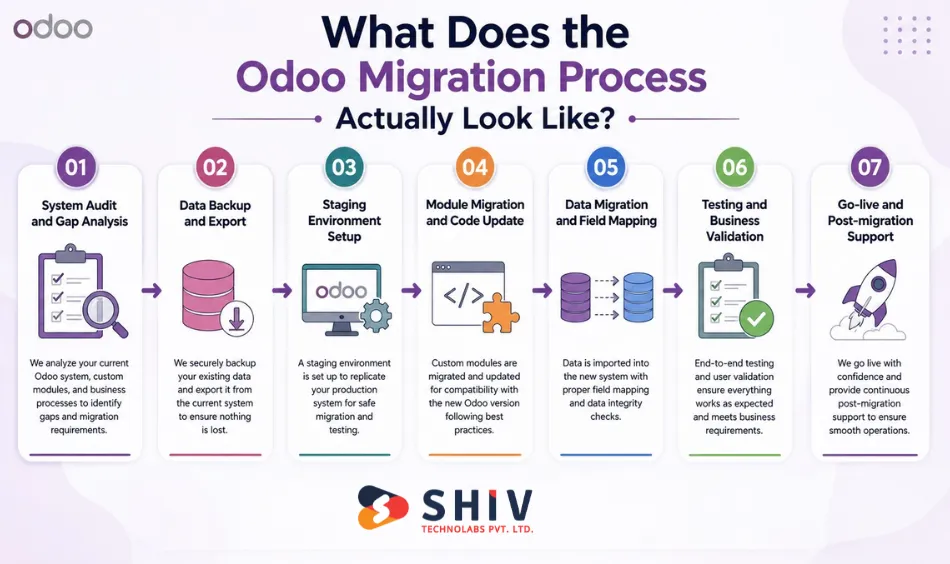
The Odoo migration process follows a structured sequence. Skipping steps causes data loss, module failures, or extended downtime at go-live. Here is how certified Odoo partners approach a migration from start to finish:
Step 1 – System Audit and Gap Analysis
Before anything moves, a technical team reviews your current version, active modules, customizations, and database size. This audit identifies which modules need rebuilding and which third-party apps are compatible with the target Odoo version.
Step 2 – Data Backup and Export
A full backup of your existing database runs before migration begins. This protects your business if anything fails during the process. The export also flags duplicate, corrupt, or outdated records that could create problems in the new version.
Step 3 – Staging Environment Setup
A staging environment is built using the new Odoo version. This mirrors your future production server. All migration work and testing happen here before anything goes live on the production system.
Step 4 – Module Migration and Code Update
Each custom module gets updated to match the new version’s API and codebase. Modules that no longer have community support get rebuilt from scratch or replaced with native Odoo alternatives that serve the same purpose.
Step 5 – Data Migration and Field Mapping
Your database migrates into the staging environment. Fields, models, and records get mapped from the old structure to the new one. Any broken references or missing data are resolved at this stage before testing begins.
Step 6 – Testing and Business Validation
The team runs full functional testing across every module. Finance teams test accounting flows. Operations teams test inventory and purchase workflows. Sales teams test CRM and invoicing. Each business process gets signed off before go-live is approved.
Step 7 – Go-live and Post-migration Support
Once testing passes, the production system switches to the new version. A post-migration support window monitors for issues in the first days after launch, with the technical team on standby for any unexpected behavior.
Also Read: How to Migrate Odoo Community Database to Cloud?
Why Should Your Business Consider an Odoo Version Upgrade?
Each Odoo version brings real improvements across security, speed, and features. Here is what a version upgrade actually delivers for your business:
1. Faster System Performance
Older versions slow down as your database grows and more users log in simultaneously. Each new Odoo release includes performance improvements to backend queries, database indexing, and frontend rendering. Reports run faster, dashboards load in less time, and daily tasks create less friction.
2. Stronger Security Standards
Cyber threats evolve each year. Odoo addresses these by releasing security patches and updated authentication methods in every new version. Older versions stop receiving patches after a set period. Running an unsupported version leaves your business data exposed to risks that the development team has already fixed in newer releases.
3. Access to New Modules and Features
Odoo 17 introduced an updated point-of-sale interface, improved subscription billing, a redesigned accounting dashboard, and stronger inventory forecasting. Odoo 18 builds further on these with AI-assisted reporting, improved manufacturing workflows, and better multi-company support. Businesses on older versions cannot use these tools without migrating.
4. Lower Maintenance Costs Over Time
Custom workarounds built on old code accumulate over the years. Each workaround adds complexity and makes future updates harder. Migration gives your team a chance to remove old patches, consolidate redundant customizations, and work from a cleaner, more stable codebase going forward.
5. Official Vendor Support
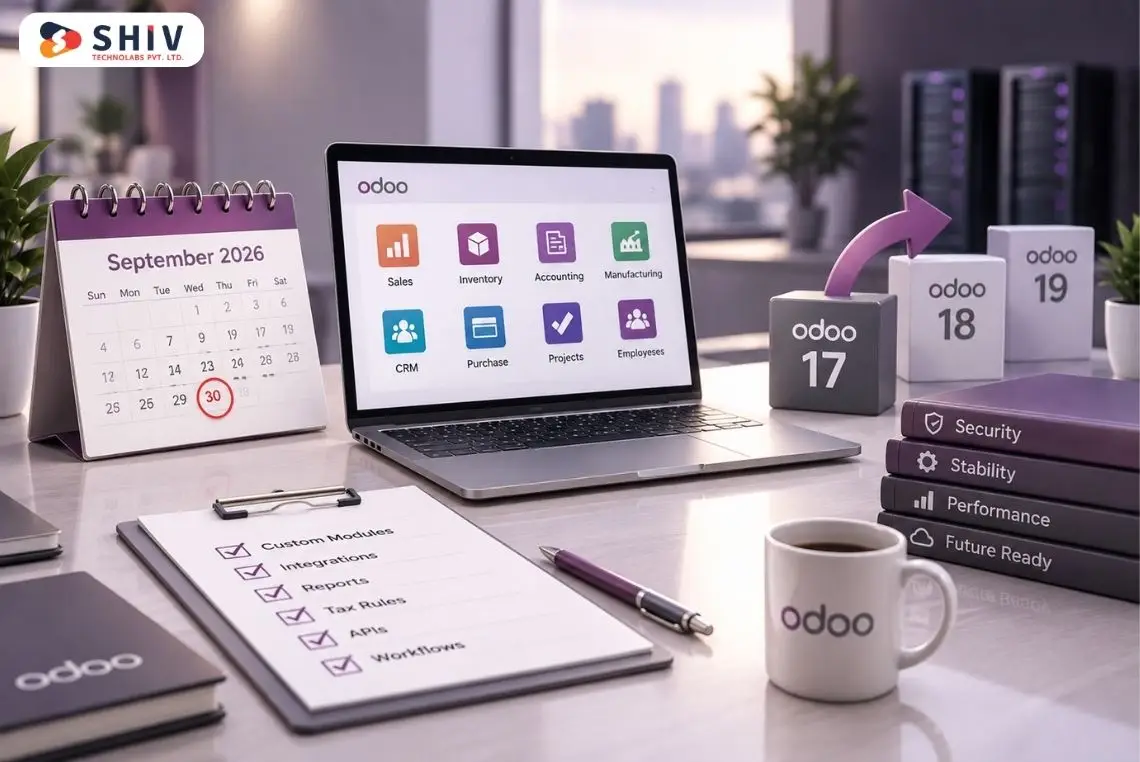
Odoo officially supports only the three most recent major versions. Businesses on version 12 or earlier receive no official bug fixes, no security updates, and no community module compatibility. Working with an experienced Odoo development company can help you plan the upgrade properly, restore access to full vendor support, and keep your system within the active support window.
When Should You Upgrade Odoo? These Signs Tell You It’s Time
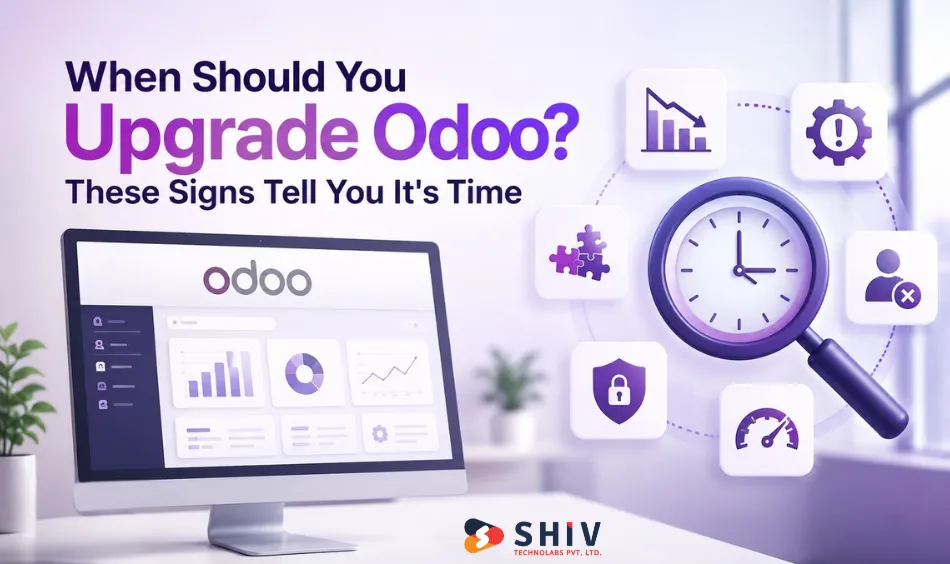
Knowing when to upgrade comes down to watching how your system behaves under normal business conditions. These are the clearest signals:
1. Frequent Errors During Daily Tasks
If your team encounters error messages while processing invoices, updating inventory, or generating reports, your current version likely has unpatched bugs. These errors interrupt workflow and create data reliability problems over time. Newer versions fix known issues that older versions carry.
2. Slow Loading and Processing Times
Dashboards that take several seconds to load, reports that time out, and slow invoice processing indicate your system is running beyond its performance capacity. Older versions lack the performance improvements added in recent releases, and this problem gets worse as your data volume grows each year.
3. Incompatible Third-party Apps
Apps you rely on from the Odoo App Store often drop support for older versions. When an app stops receiving updates, it creates security gaps and breaks expected functionality. If apps are behaving unexpectedly or failing to install updates, your Odoo version is likely outside the supported range for those apps.
4. Your Version is Outside Official Support
Odoo maintains support for its three most recent major versions. Once your version falls outside this window, you receive no official patches, no security fixes, and no compatibility updates. Planning a migration before this point avoids forced emergency upgrades under time pressure.
5. Your Team Needs Features Only Available in Newer Versions
When your sales or finance team asks about tools they have seen in product demos, or when your current system cannot handle a workflow your business needs, that is a direct business signal. Staying on an older version means working around limitations that newer releases have already addressed.
Odoo Migration Checklist: What to Verify Before You Start
A structured checklist prevents the most common migration failures. Work through these items before any migration work begins:
1. Before Migration
- Take a full database backup and store it separately from your production server
- Document all installed modules and their current version numbers
- List all active third-party integrations and their API connection details
- Identify all custom Python modules and their dependencies
- Check the compatibility of each installed module with your target Odoo version
- Define business processes that need validation testing after migration is complete
- Set a timeline with a buffer period for unexpected technical issues
- Assign a business owner for user acceptance testing on each major module
2. During Migration
- Run all migration work on a staging server first, never on production
- Validate data record counts before and after migration to catch missing records
- Test each module in the staging environment before approving go-live
- Document any modules that fail and plan replacements before switching production
3. After Migration
- Run parallel operations for a short period if your business can support it
- Train users on any interface changes or updated workflows in the new version
- Monitor system performance and error logs for the first week after go-live
- Confirm all integrations with external tools are working correctly
What Does Odoo Migration Cost?
Odoo migration cost depends on several variables. Businesses with simple setups spend considerably less than those with years of heavy customization and large databases.
1. What Affects the Cost
- Version gap – Migrating from Odoo 12 to 18 takes more work than from Odoo 16 to 17, because code changes accumulate across each skipped version
- Number of custom modules – Each module requires individual review, code updates, and dedicated testing
- Database size and data quality – Large databases with years of transactions take longer to export, clean, and import correctly
- Level of customization – Deeply modified Odoo workflows need more developer hours during the module migration phase
2. Estimated Cost Ranges
| Business Type | Estimated Range (USD) |
|---|---|
| Small business, minimal customization | $2,000 – $4,000 |
| Mid-size, moderate modules | $5,000 – $8,000 |
| Large enterprise, heavy customization | $10,000 and above |
These ranges reflect current market rates from certified Odoo partners. The actual cost for your business depends on a technical assessment of your current system and the target version.
Also Read: Odoo Implementation Cost, Process & Challenges


Should You Hire an Odoo Migration Expert?
Some technical teams consider handling migration in-house to reduce cost. In most cases, this creates more problems than it saves money.
1. What Goes Wrong With Self-managed Migration
Data loss during export or import is the most common failure. Without experience mapping fields between Odoo versions, records disappear or end up in the wrong database models. Custom modules that worked on the old version break unpredictably on the new one. Go-live delays extend from days into weeks when teams underestimate the testing required.
2. What an Experienced Odoo Migration Partner Handles
Certified Odoo partners bring tested processes for data validation, module compatibility checks, and staged go-live. They have completed migrations across different version gaps, industries, and business sizes. They also catch issues during the audit phase that would only surface after go-live if missed.
Working with an Odoo migration service provider matters most when you have custom modules built over several years, integrations with third-party tools such as payment gateways or shipping providers, or a database that cannot afford extended downtime during transition.
Migrate Your Odoo System with Shiv Technolabs
Shiv Technolabs has completed Odoo migrations for businesses across manufacturing, retail, real estate, and logistics. Our certified Odoo developers work through every stage – from the initial system audit through post-go-live support.
We handle data migration, custom module rebuilding, third-party integration testing, and user training. Whether you are moving from Odoo 12 to 18 or from 16 to 17, we build a migration plan based on your actual system – not a template.
FAQs
1. What is The Difference Between Odoo Migration and Odoo Upgrade?
These terms describe the same process. Moving from one Odoo version to a newer one involves migrating data, modules, and the platform. Some teams use ‘upgrade,’ and others use ‘migration.’ The technical work behind both terms is identical.
2. How Long Does Odoo Migration Take?
A simple migration with minimal customization typically takes 1 to 2 weeks. A complex migration with multiple custom modules and a large database can take 2 to 4 weeks. The timeline depends on the version gap, database size, and testing scope.
3. Will I Lose My Data During Odoo Migration?
No, if migration is handled correctly. A full database backup runs before any migration work begins. Data goes through validation at multiple stages to confirm nothing is missing before the system goes live on the new version.
4. Can I Migrate From Odoo 12 to Odoo 18 Directly?
Yes, a direct migration from Odoo 12 to 18 is possible. It requires more work than migrating between adjacent versions because code changes accumulate across each skipped release. Many businesses choose to migrate in stages, though a direct path is achievable with proper technical planning.
5. What Happens to My Custom Modules During Migration?
Custom modules need to be updated to match the new version’s code structure. Modules that relied on APIs removed in newer versions need to be rebuilt. A technical audit of all custom modules should happen before migration begins so there are no surprises at go-live.
6. Does Community Edition Migration Work the Same as Enterprise?
The core process is the same. Community-to-Enterprise migrations include additional steps for activating Enterprise features and licensing. Community-to-Community migrations are generally simpler and less expensive overall.
7. What is the Odoo Migration Checklist I Should Follow?
Key steps include taking a full database backup, documenting all installed modules, checking module compatibility with the target version, running migration on a staging server first, validating record counts before and after transfer, and testing every business process before going live.